 JianyingAPK
Jianying Picture in Picture: Overlay Clips, Logos and Reactions
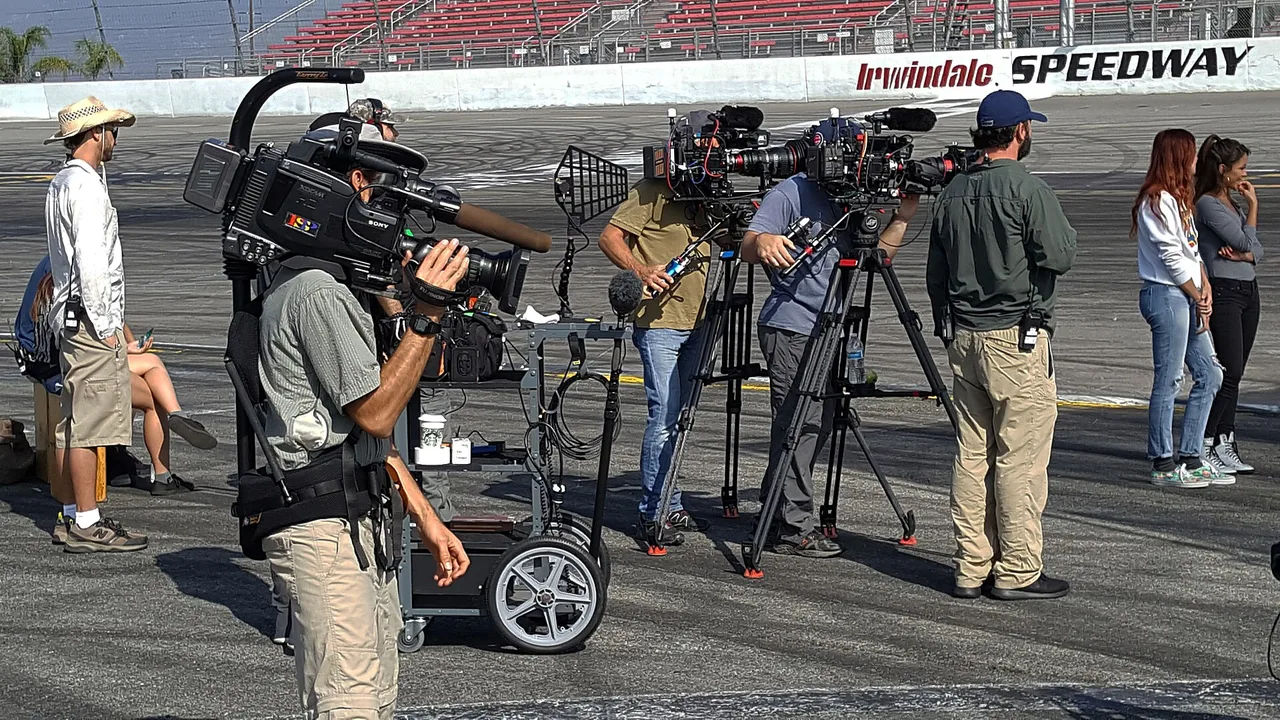
Picture in picture is the overlay track doing its most recognisable job: a small video living on top of the main one. Reaction corners, a face cam over gameplay, a close up of the product while the presenter talks, a screen recording inside a tutorial. In Jianying all of these are the same move: add an overlay clip, size it, shape it, and time it. The technique is easy; the judgement is in size, placement and restraint.
This guide covers adding and shaping overlays, round and masked frames, borders that keep a small clip readable, and syncing a reaction to the moment it reacts to. Readers setting up first will find the Jianying video editor APK details on our homepage.
Adding an overlay and placing it well
Use the overlay menu to add a video above the main track, then drag it on the timeline so it starts exactly where it should appear. In the preview, pinch to size and drag to place. Placement rules are mostly about faces and captions: keep the overlay out of the top area where platform interfaces sit, and never cover the main subject's face or the subtitle line. Bottom corners are the natural home, with the lower third corner opposite the captions the safest default.
Size is a balance. Too small and the overlay is decoration; too large and it becomes a second video competing with the first. For a face cam, a quarter of the frame width is a good starting point.
Shapes, masks and borders
The mask tools turn a rectangular overlay into a circle or rounded frame, which is why reaction corners look soft and designed rather than pasted. A thin border or a subtle shadow separates the overlay from busy backgrounds; Jianying's border and background options on the overlay clip do this in one step. Keep the treatment consistent across a series: same shape, same corner, same border, so viewers learn where to look.
For a logo or watermark overlay, use a still image on the overlay track, stretch it to the full timeline, and lower its opacity until it identifies the video without shouting over it. Readers working through this topic usually also need our walkthrough on jianying masking guide: shapes, feathering and reveal effects, which covers the neighbouring step in the same workflow.
Syncing reactions and second angles
A reaction overlay earns its place when it lands on the exact frame of the moment: the goal, the reveal, the punchline. Nudge the overlay clip a frame at a time while watching the join at slow speed, and trim its head so the reaction starts a beat after the event, the way a real person responds. Second angles, such as a close up of hands while the wide shot plays, should cut on movement so the two views feel like one continuous action.
Audio usually stays with the main track. Drop the overlay clip's volume to zero unless its sound is the point, because two competing audio streams at once is the fastest way to make a phone edit sound amateur.
Animating the overlay in and out
A static appearance is fine, but a small entrance sells the design: keyframe the overlay from slightly smaller and lower opacity to its resting state over a third of a second, or use one of the built in overlay animations. Mirror the move at the exit. Keep the animation subtle and identical every episode; the audience should feel the polish without being able to name it.
Two more guides round out this workflow: jianying templates: find, customise and reuse winning formats and jianying chroma key: green screen without the green fringe. Together they cover the steps before and after this one, so a full project never stalls on a missing piece.
A final note from our reviewer
One last practical note from our bench: watch the finished video once with the sound off and your eyes on the corners. Overlay problems, a frame too early, a border that vanishes against a bright background, a logo covering a caption, are all visible in a silent pass, and silent passes are how most of your audience will meet the video anyway.
Frequently Asked Questions
How do I add a picture in picture video in Jianying?
How do I make the overlay round?
Should the overlay clip keep its sound?
Victor Liang
Victor Liang has spent nine years cutting short form video for creators and small studios, and he tests every editor on this site on real Android phones before a download page goes live. His bench work focuses on timeline performance, caption accuracy, export quality and how an app behaves on mid range hardware. More about Victor Liang