 JianyingAPK
Jianying Masking Guide: Shapes, Feathering and Reveal Effects
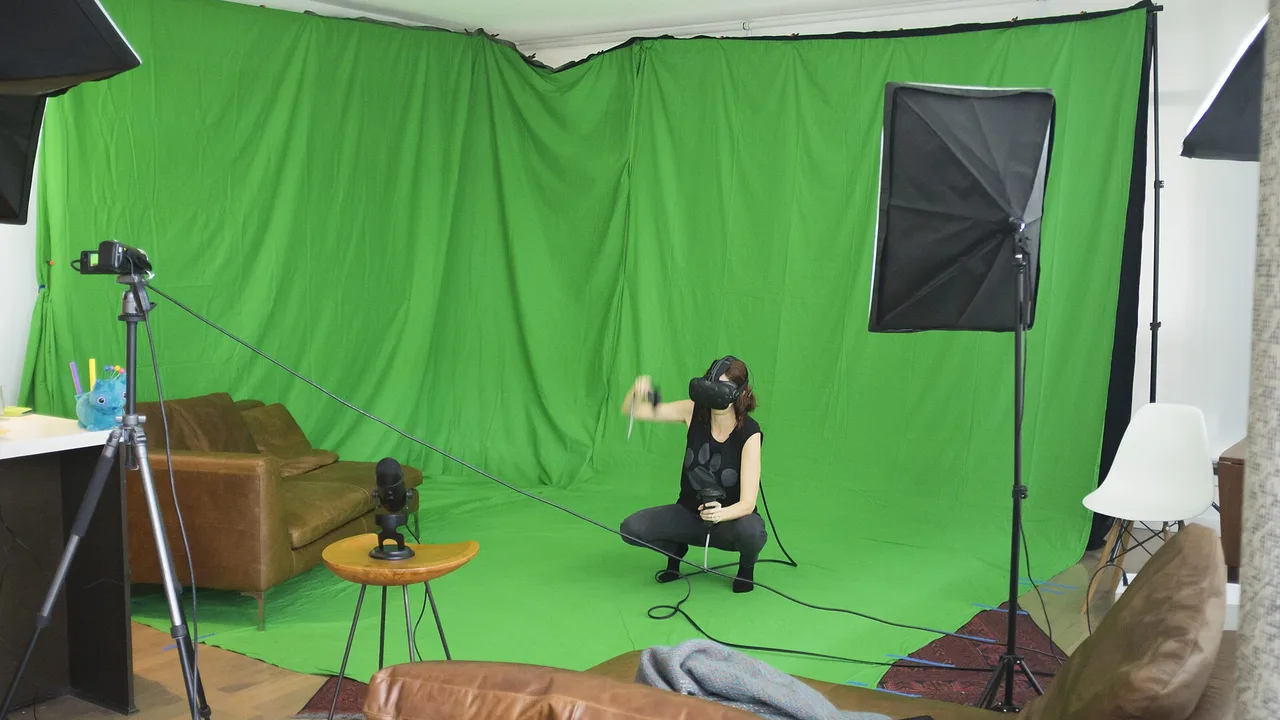
A mask tells Jianying which part of a layer is visible. Everything inside the shape shows; everything outside disappears. That one idea powers a long list of effects: split screens, text that appears from behind a building, a second copy of yourself in the same room, and the clean reveals that make product shots look staged. The tool is simple, but the polish lives in feathering, sizing and timing.
This guide walks through the mask shapes Jianying offers, how to feather and invert them, and how to animate a mask with keyframes for reveals. If you are comparing editors first, the Jianying editor for Android is covered in full on our homepage, with the features and install details in one place.
The mask shapes and what each one is for
Jianying offers linear, mirror, circle, rectangle, star and heart masks, plus a hand drawn pen path on fuller builds. Linear masks split the frame along a line you can angle freely, which suits split screens and before and after comparisons. Circle and rectangle masks frame a subject or a screen recording. The pen path is slower to draw but follows real objects, which is what text behind a skyline or a product reveal actually needs.
Choose the simplest shape that fits the job. A rectangle with the right feather beats a shaky hand drawn path every time, and viewers only ever see the result, not the effort.
Feathering: the difference between cut and blend
Feather softens the mask edge over a distance you choose. Zero feather gives a graphic, cut paper edge, which is right for split screens and bold layouts. A few pixels of feather melts one shot into another, which is what skin, skies and walls demand. Too much feather creates a ghostly halo where both layers show through, so raise it slowly and judge at full screen size, not in the small preview.
Match the feather to the subject: hard objects take hard edges, soft subjects take soft ones. That single habit fixes most amateur looking masks. Readers working through this topic usually also need our walkthrough on jianying chroma key: green screen without the green fringe, which covers the neighbouring step in the same workflow.
Inverting masks and the clone effect
Invert flips the logic: the inside of the shape hides and the outside shows. Inversion is how you cut a doorway shaped hole in one layer to reveal another beneath it, and it is half of the classic clone effect. For the clone, lock the phone on a tripod, record yourself on both sides of the frame, stack the two clips, and mask the top one with a linear mask down the middle. Feather the join lightly and keep both performances away from the centre line.
The clone fails when the camera moves or the light changes between takes. Lock exposure as well as position, and record both sides in one session.
Keyframed mask reveals
Add keyframes to a mask and the shape can travel: a rectangle that wipes a title in, a circle that grows from a product, a linear edge that follows a walking subject. Set the mask at its start position, add a keyframe, move the playhead, and reshape. Jianying interpolates the journey. Keep reveals short, under a second for titles, so the movement reads as design rather than decoration.
Two more guides round out this workflow: jianying background removal: cutout tools for people and products and jianying keyframe animation: moving text, stickers and clips with intent. Together they cover the steps before and after this one, so a full project never stalls on a missing piece.
A final note from our reviewer
One last practical note from our bench: zoom the preview in when you finish a mask. Edges that look clean at phone size can show a one pixel fringe at full screen, especially where a feathered mask crosses a high contrast boundary. Thirty seconds of zoomed inspection beats finding the fringe after the video is published.
Frequently Asked Questions
What is a mask in Jianying?
How do I stop a mask edge looking harsh?
Can a mask move during the video?
Victor Liang
Victor Liang has spent nine years cutting short form video for creators and small studios, and he tests every editor on this site on real Android phones before a download page goes live. His bench work focuses on timeline performance, caption accuracy, export quality and how an app behaves on mid range hardware. More about Victor Liang